![Iventis_Pos_CMYK-1.jpg]](https://support.iventis.com/hs-fs/hubfs/Iventis_Pos_CMYK-1.jpg?height=50&name=Iventis_Pos_CMYK-1.jpg)
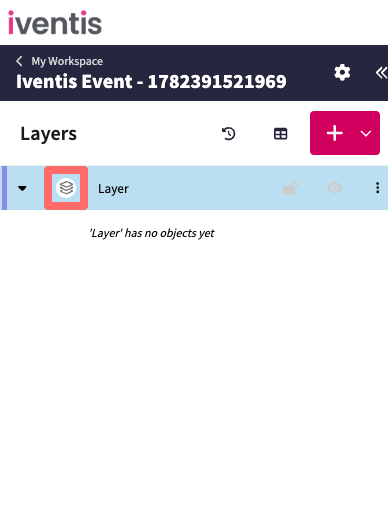
Open the layer editor
Click on the layer preview to open the layer editor panel.
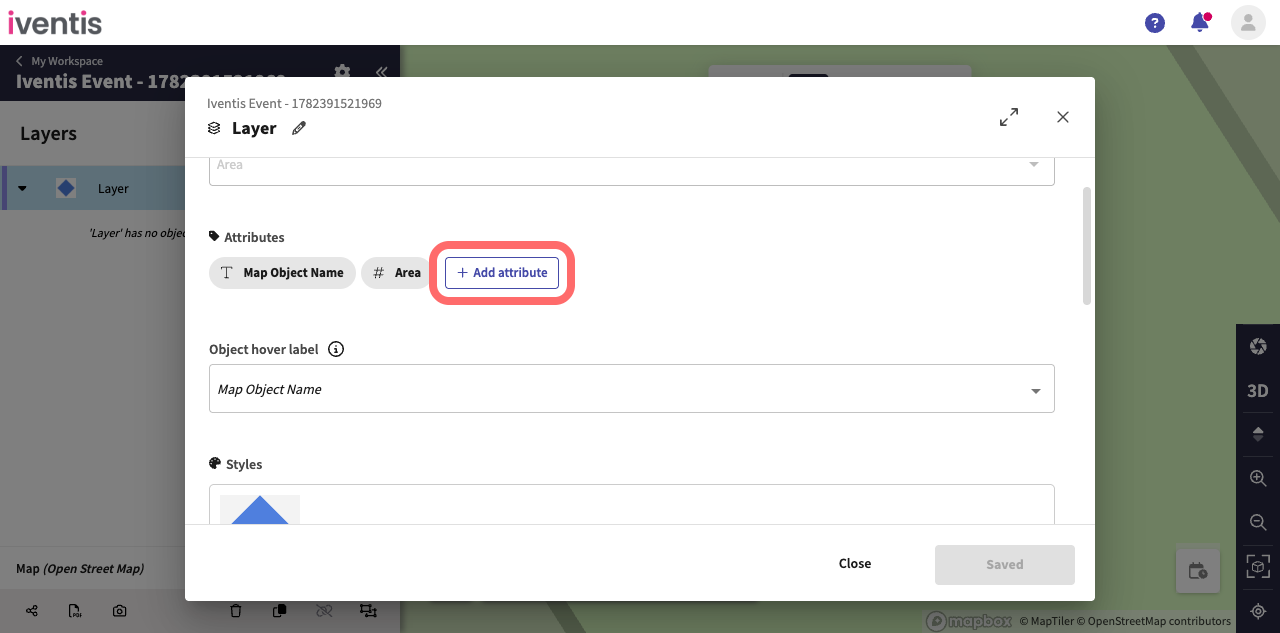
Click the add attribute button
Scroll down in the layer editor and click the add attribute button.
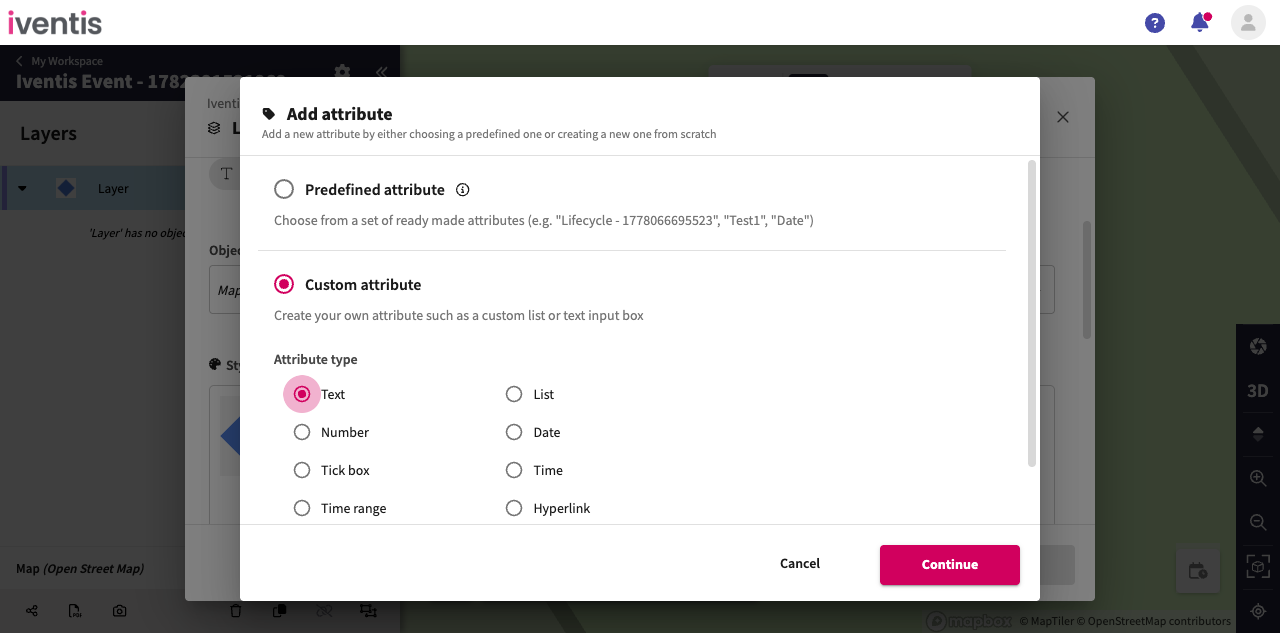
Select the attribute type
Choose "Custom" and select "Text" as the attribute type.
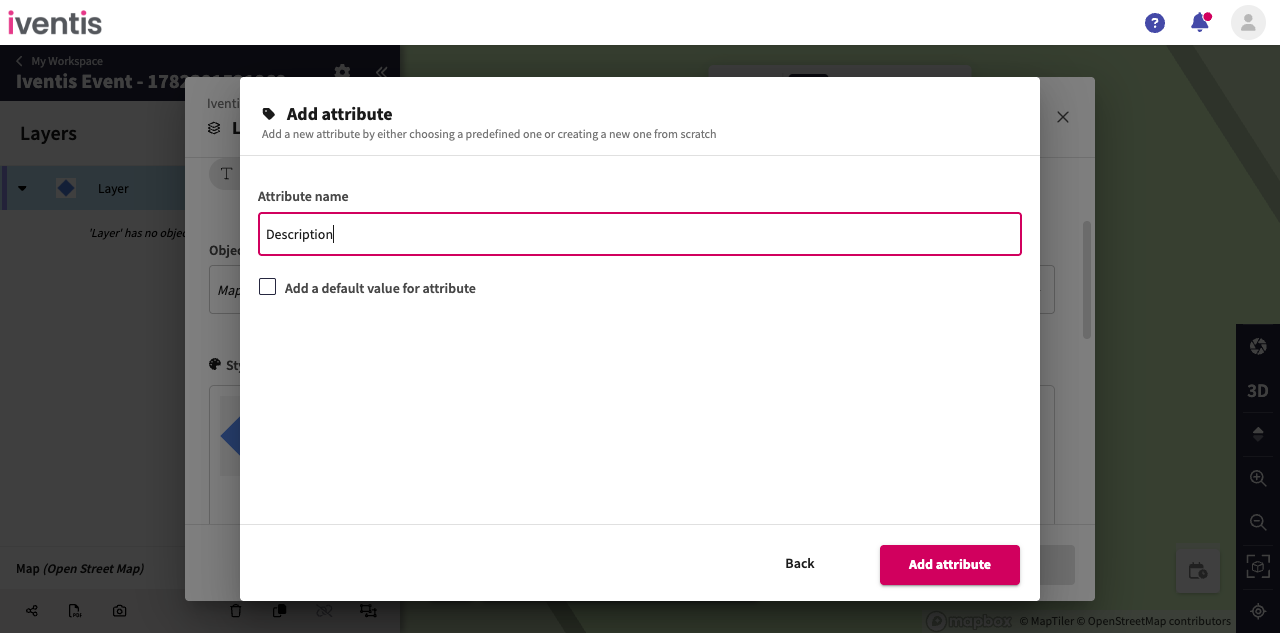
Name the attribute
Type "Description" as the attribute name.
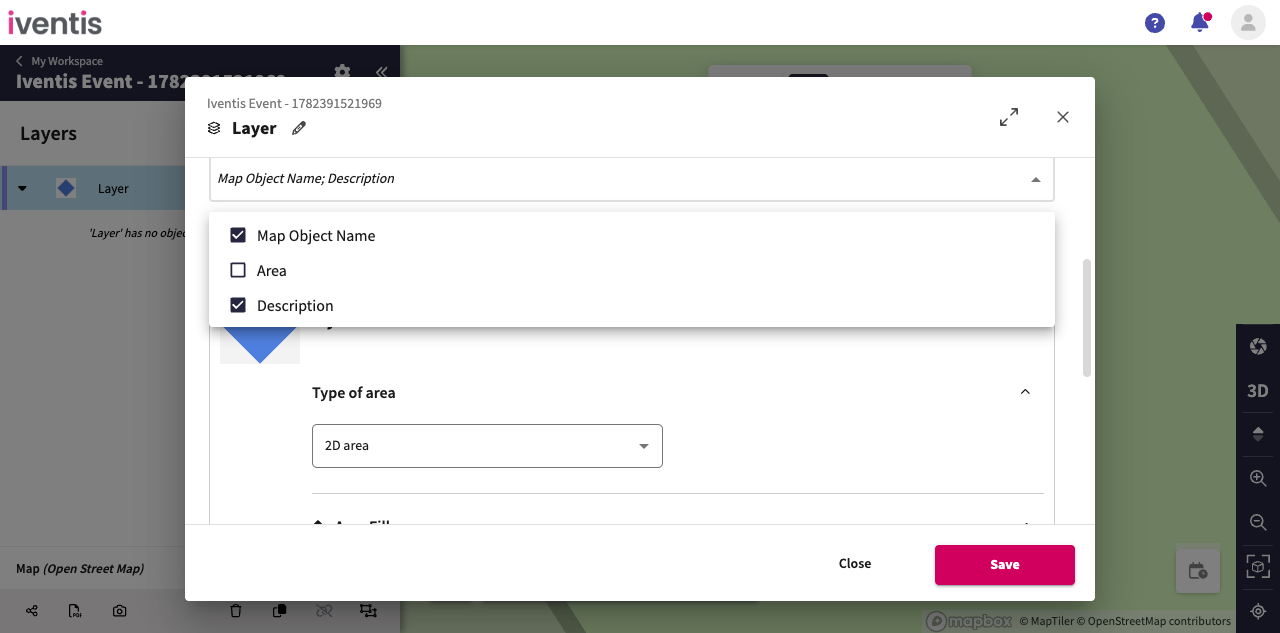
Select the tooltip attribute
Open the tooltip selector and choose the "Description" attribute to display on hover.
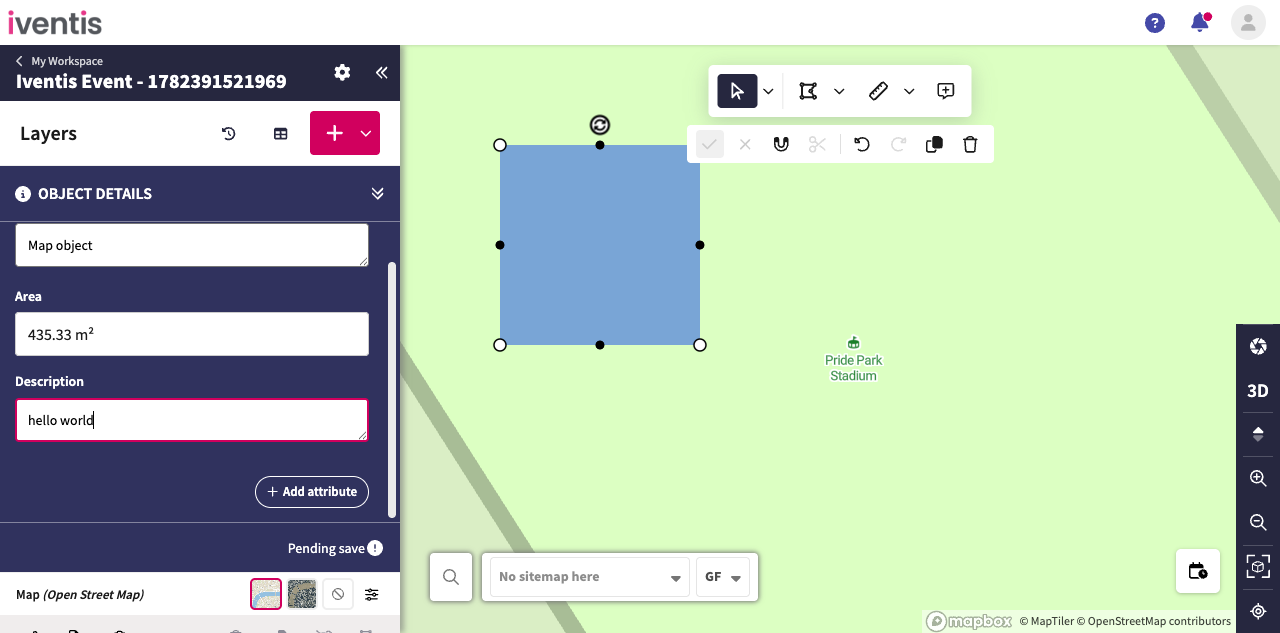
Set the attribute value
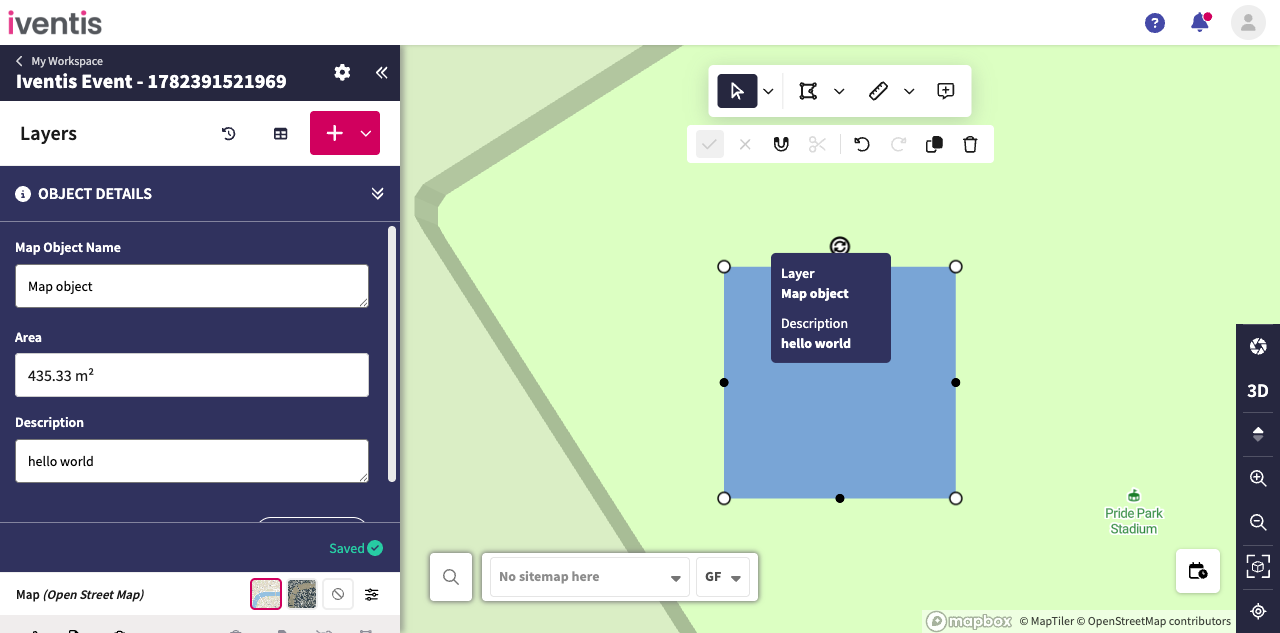
Select the map object on the map and change the Description attribute value in the map object details panel.
Hover over the map object to see the tooltip
Move your mouse over the drawn object to see the tooltip displaying the custom attribute value.